White-label CoreConsent for your clients (Agency)
White labeling lets you present CoreConsent as your own branded tool — your name, your logo, your support links — across your clients’ WordPress dashboards and on the consent banner itself. It’s included in the Agency plan.
Requirements: an active Agency license, with CoreConsent Pro installed and activated. On other plans, the White Label tab shows an upgrade notice instead of the settings.
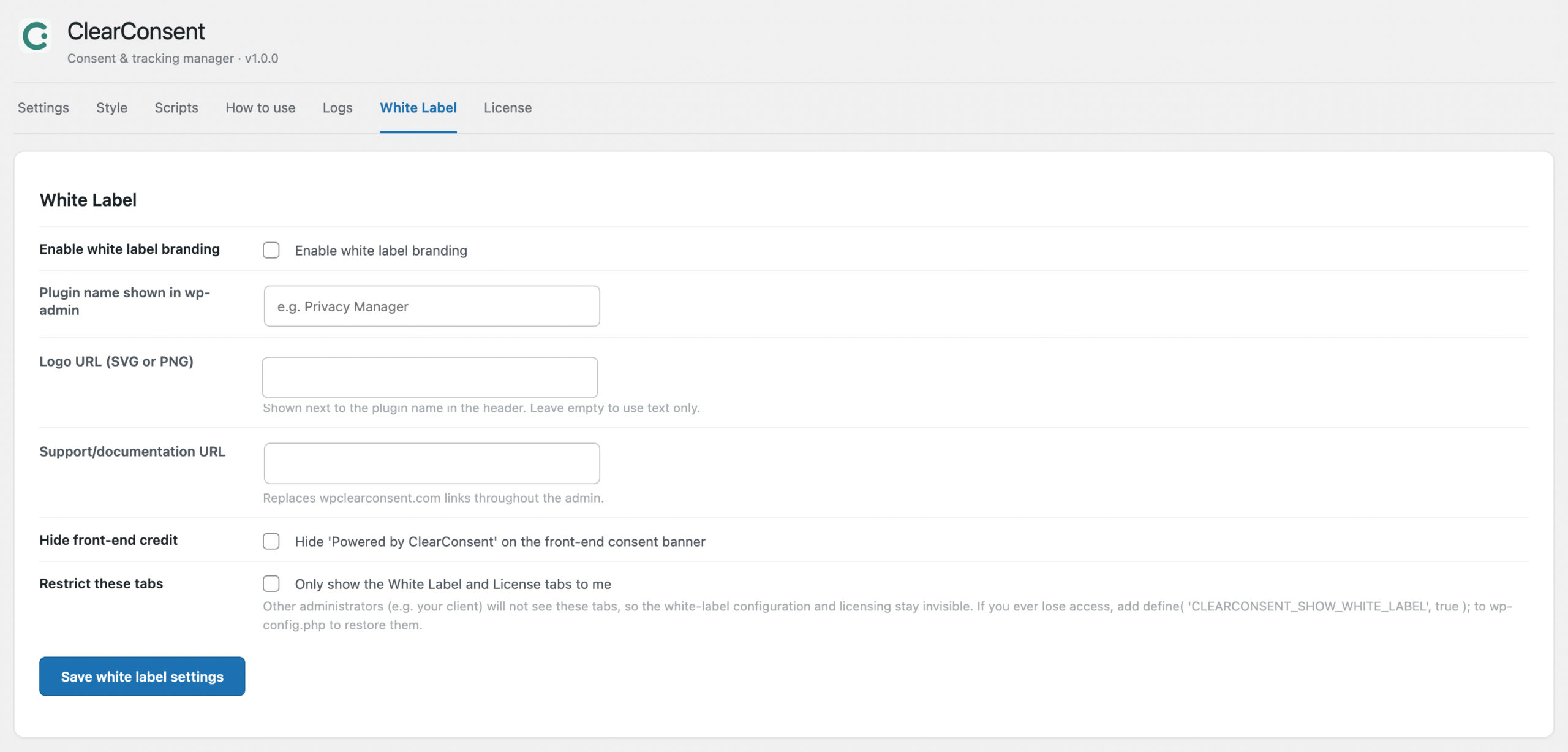
What’s included
Everything lives on the White Label tab of the plugin’s settings. Five settings control the whole feature:
| Setting | What it does |
|---|---|
| Enable white label branding | Master switch. Nothing below takes effect until this is on. |
| Plugin name shown in wp-admin | Your product name (e.g. Privacy Manager). Replaces “CoreConsent” everywhere in the admin interface. |
| Logo URL (SVG or PNG) | Shown next to the plugin name in the settings header. Leave empty for text only. |
| Support/documentation URL | Replaces wpclearconsent.com links throughout the admin — help links, documentation references, and the “Send to support” button in the debug panel all point to your support site instead. |
| Hide front-end credit | Removes the “Powered by CoreConsent” credit from the consent banner your clients’ visitors see. |
| Restrict these tabs | Hides the White Label and License tabs from every other administrator — only you (the user who enabled it) can see them. This prevents a client admin from discovering the white-label configuration or the licensing screens. |
What changes when it’s enabled
In wp-admin (what your client sees):
- The settings page header shows your logo and product name instead of CoreConsent’s.
- The admin menu entry is renamed to your product name.
- Every CoreConsent mention in the plugin’s interface text is replaced with your product name automatically — notices, descriptions, buttons, all of it.
- The Plugins screen listing is rebranded too: the row shows your product name, links to your support URL, and the original author and description are cleared.
- Support and documentation links across all tabs go to your support URL, so clients contact you, not us. That includes the diagnostics “Send to support” button.
On the front end (what your client’s visitors see):
- With Hide front-end credit checked, the banner carries no CoreConsent branding at all.
- If you leave the credit visible and have the banner-logo option enabled, the banner shows your agency logo rather than the CoreConsent mark.
Setting it up
- Activate your Agency license on the client site (License tab → paste your key → Activate license).
- Open the White Label tab.
- Tick Enable white label branding, fill in your product name, logo URL, and support URL, and decide whether to hide the front-end credit.
- If your client has their own admin accounts, tick Restrict these tabs so only your user sees the White Label and License screens.
- Click Save white label settings.
The rebrand takes effect immediately on the next page load. Settings are per-site, so you can brand different client sites differently — or push a common configuration across a multisite network from the My Sites screen (also Agency).
Tip for a fully “invisible” install: the visitor-facing consent cookie is named clearconsent by default. If you want nothing client-visible to carry the name, rename it under Settings → Developer options → Cookie / storage key name.
What white labeling does not hide
We’d rather you hear this from us than from a curious client:
- The plugin folder and asset URLs. The plugin still lives at
/wp-content/plugins/clearconsent-pro/, and front-end scripts/styles load from that path — visible in the page source and to anyone with file access. - Internal identifiers. CSS classes (
cc-*), option names, and code references keep their original names. Renaming those would break updates and integrations. - Updates and licensing plumbing. Updates are still delivered through the licensing service, and the License tab still manages the license.
In practice: a client browsing wp-admin sees only your brand — with Restrict these tabs enabled, not even the White Label or License screens — while a developer reading page source can still identify the underlying software. That’s the standard trade-off for white-labeled WordPress plugins — full rebranding without forking the codebase.
Locked yourself out? If the restricting user account is ever deleted, the tabs automatically reappear for all administrators. If you simply lose access to that account, add define( 'CLEARCONSENT_SHOW_WHITE_LABEL', true ); to wp-config.php to restore the tabs for everyone.